Showing posts with label how. Show all posts
Showing posts with label how. Show all posts
Thursday, August 15, 2013
How to Control your iPhone through PC

ave you ever wanted to control your iOS device through your PC? Many iPhone users who have, use software like MyMobiler (http://mymobiler.com/) to control the phone through windows PC. Here is one solution by veency (for jailbreak devices only!) that will do the same thing. The only difference is that veency requires a WiFi connection.
Step 1:
Install Veency server on your device (search cydia for veency – it is the free one from saurik).
After installing, in settings you can find veency. Enable it and set any password. You may leave the password blank but with 2 disadvantages. One is you leave yourself open to anonymous intruders and second is you have to touch the accept/reject every time you connect the device through a VNC viewer.

Step 2:
Now the rest of the work is done on your PC. Install a VNC viewer (TightVNC -http://www.tightvnc.com/) is my choice. You can install any VNC Viewer you want.
Run the TightVNC Viewer on your PC – it asks you for the WiFi IP address (you can get it from Settings > General > Network > WiFi > YourConnection > DHCP) Make a note of it and input it to the VNC Viewer.


Step 3:
If you set a password for the veency server on your device, it will ask you for the password – input the password and it will display the device view on your PC Monitor. If you set no password then a confirmation popup shown on your device which prompt you to accept or reject the connection, press accept and it will display the device view on your PC Monitor.

That’s it! Enjoy the comfort of remotely logging into your phone via veency. You can view the screen, touch controls and even push the lock and menu buttons all from the comfort of your desk or laptop.
The controls are :
Left Click – touch the screen
Middle Click – lock button
Right Click – Home Button
Keyboard – Yes!! You can use the PC Keyboard to input the data to your device.
As with any jailbreak related procedure, please use this at your own risk. We take no responsibility for any damage incurred to your devices.

Saturday, August 10, 2013
How To Conserve Battery Smartphone
How To Conserve Battery Smartphone - Today is a lot of products such as tablets, mobile phones and other lai is equipped with a large-capacity battery to run the activities. But it would be nice if we could save the battery.

How To Conserve Battery Smartphone:
- Turn off the radio signal, In certain areas, the smartphone can lose signal. This can happen because the signal transmitter tower is located far away from the traffic of smartphones are or were full. If the signal is lost, the system will continue to look for a smartphone usually the best connection. Search signal continuously can make the battery runs out quickly. We recommend that you turn off the radio signal. Turn off WiFi and Bluetooth feature when not in use.
- Turn on Airplane Mode, By turning on Airplane Mode, all radio signals, either GSM, WiFi, Bluetooth up, immediately shuts down.
- Turn off the vibration, Actually vibration requires more battery power compared to normal ringtone.
- Close unneeded applications, Some applications are opened simultaneously is one cause of battery life.
- Do not streaming, Cut down stream if do not want the battery runs out quickly. Watch the video or listen to music via YouTube is fun, but this activity makes the phone system continues to work and eventually make the battery run out quickly.
- Dim the screen, The brighter the screen, the faster the battery runs out.
Here are some ways to make your smartphone battery can last longer in use.
Tuesday, April 30, 2013
HTC Desire Android SIM Unlock how to
Easy ways to do the SIM-Unlock on HTC Desire (Android) there are 2 methods that I know, namely:
1. Boot from CD
2. Boot from USB (PenDrive / FlashDisk) course for the laptop supports booting from USB.
For the first method, the following steps:
1. Download the ISO file below, and burn to CD (this is freeware)
HTC-Desire-unlock_v0.2a.iso
2. Boot the computer with the CD
3. Power up your phone into HBOOT by pressing both Vol-Down and Power buttons
4. Connect the device to the computer and then press ENTER
5. follow the instructions
For the second method, the following steps:
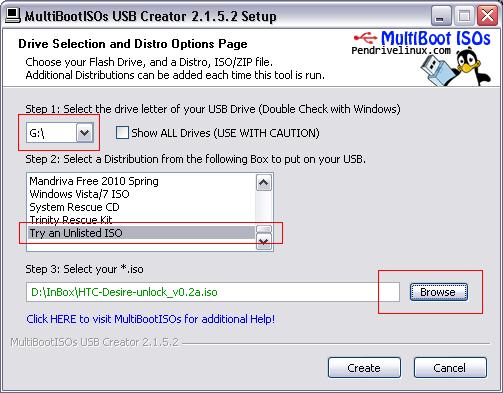
1. Download Multiboot ISO, HERE
2. FlashDisk Plug into your computer, then format
3. Run Multiboot ISO, and adjust the flash drive as the drive in your computer
4. follow the instructions as shown below marked with red boxes mark, then click "create"
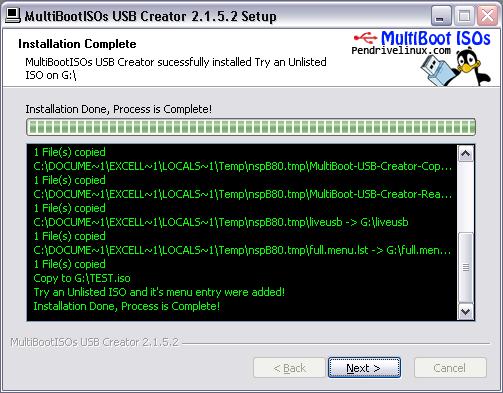
5. after appearing as shown below, click "next"
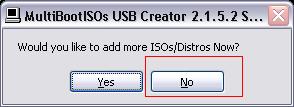
6. last click "no"
After that please boot your computer from USB, and Ulock ready made.
Note: The app does not require root or s-off and Should work on any hboot and radio version. (It has been tested so far with HBOOT up to 0.93.1000 and up-to-RADIO 5.14.05.17).
Its based on Some vulnerabilities and undocumented features, so disclosing Them Would mean the Greater the chance of Them being corrected.
Ive only tested it on Desire GSM and I do not recommend using it on CDMA devices; doing Otherwise Could lead to unpredictable results.
credited to: forum.xda-developers.com
1. Boot from CD
2. Boot from USB (PenDrive / FlashDisk) course for the laptop supports booting from USB.
For the first method, the following steps:
1. Download the ISO file below, and burn to CD (this is freeware)
HTC-Desire-unlock_v0.2a.iso
2. Boot the computer with the CD
3. Power up your phone into HBOOT by pressing both Vol-Down and Power buttons
4. Connect the device to the computer and then press ENTER
5. follow the instructions
For the second method, the following steps:
1. Download Multiboot ISO, HERE
2. FlashDisk Plug into your computer, then format
3. Run Multiboot ISO, and adjust the flash drive as the drive in your computer
4. follow the instructions as shown below marked with red boxes mark, then click "create"
5. after appearing as shown below, click "next"
6. last click "no"
After that please boot your computer from USB, and Ulock ready made.
Note: The app does not require root or s-off and Should work on any hboot and radio version. (It has been tested so far with HBOOT up to 0.93.1000 and up-to-RADIO 5.14.05.17).
Its based on Some vulnerabilities and undocumented features, so disclosing Them Would mean the Greater the chance of Them being corrected.
Ive only tested it on Desire GSM and I do not recommend using it on CDMA devices; doing Otherwise Could lead to unpredictable results.
credited to: forum.xda-developers.com
Sunday, April 7, 2013
How to Hard Reset Huawei U1310
 When you are going to handover your phone to other person, you need to clear your saved personal data. Or when you are going to sell your used phone, you need to remove all data and your personal phone setting. This is called resetting phone. Sometimes resetting is needed when some difficulties occur with the phone such phone became very slow,or freeze, or phone shows abnormal behavior. Some times resetting can save your money by prohibiting you from purchasing a new phone.
There are two types of resetting and one is soft reset and another is hard reset. Soft reset can change your personal phone setting but hard reset can erase all data such all personal data and installed application. Hard reset can bring phone to its original state. Resetting can be called as many ways, Here I’ll show you how to reset Huawei U1310 . And some one ask as following ways: How to restore Huawei U1310 . How to factory reset Huawei U1310 . How to factory restore Huawei U1310 . How to format Huawei U1310 . How to master reset Huawei U1310 . How to soft reset Huawei U1310 . How to full reset Huawei U1310 . How to full restore Huawei U1310 . How to full erase Huawei U1310 . All Data Will Be Lost ! Back Up Your Data Before Doing Hard Reset.
Hard Reset Huawei U1310
After fully charged Huawei U1310 battery and take the the sim card
On dialling screen of your Huawei U1310 type these code ##258741 then press call button.
After few seconds hard rerest will start.
** Do not hard reset if you really need it.
** Sometimes hard reset may damage your device permanently.
** Do not forget to back up your useful date before hard reset your Huawei U1310 because hard reset will erase all data from your phone including installed applications.
Subscribe to:
Posts (Atom)